
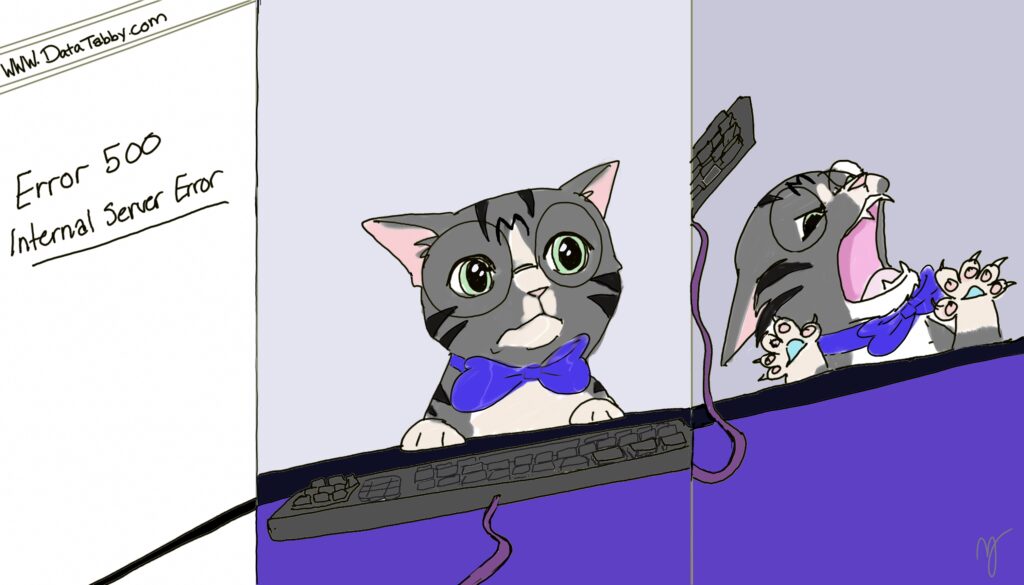
Trial and Error
August 30th 2026 I learned two important things:
- Bluehost, my hosting site backs up once a week and if you want to do any more than that, you have to pay.
- WooCommerce is a lot and it can freak out and take you down with it.
The whole point of moving my site over to WordPress is because I wanted to get first hand experience with building there. I didn’t go in with a template or a “Press This Button And Make A Site” type deal. I did it all from scratch. That’s my whole thing, throwing myself in the middle of something and building my way out of it. Since a lot of the internet is built on WordPress, I wanted to know how sites worked in this modern age. I used to build sites by hand back in the early days. (I was there Gandalf. I was there 3000 years ago when HTML5 came out….) So I went and made a site. I searched “Most popular plugins”, installed a bunch in the “YOU MUST HAVE THIS!” territory. I quickly learned that WordPress is code for “Earth’s entire plugin database” and quickly shifted gears away from the billions that exist, to learn the essence behind SEO, putting plugins in the back of my mind.
But one thing kept happening to me. Wordfence-admittedly a very good plugin (not sponsored but could be, hit me up)- kept notifying me on every update something wasn’t syncing. And every single time it was something different but the files kept growing in number. Finally after taking some time to try to understand what was happening, I checked my backups…found out that Bluehost, in fact, only backs up every week, on a day of the week 🌟at random 🌟and you have to pay to do an additional backup, but did notice that the backup was recent, so I said “Ok Wordfence, repair all repairable files”.
Mistake #1: WordPress Plugin Extravaganza
The most important part to remember is that if you’re new to the world of WordPress, is that WordPress has a bajillion (scientific word) of plugins, and not every single one of them is necessary for you. The next most important part to remember is that one man’s listicle is not necessarily another man’s golden ticket. WooCommerce came up a lot. So, new-to-WordPress me, thought it was necessary. I didn’t take into account that for all of the things WooCommerce can do, none of it pertained to me. Sure I could have used WooCommerce security, but I have Wordfence. I’m not taking payments through my site (yet), and there really wasn’t any reason to have it. So I had it, but I also didn’t set it up, so it was just sitting there being useless and taking up space and secretly doing a whole lot of adding itself into files when I didn’t need it to. Now if you use Woo, that’s great. It’s a juggernaut but, great. One should really learn what it’s doing and why, however.
Mistake #2: Wing and A Prayer
I’m going to give Wordfence a break here because it’s not the fault of the plugin that my site went down. I was given a warning, and I knew there was a risk. However I thought that I’d just log into the backup on Bluehost and restore if anything went wrong. My mistake was not diving deep to find out what the full meaning of the errors were, even though all it did was show me a location and tell me there was a mismatch, I didn’t do my usual thing of learning everything I can up to a point to know what the plugin was fixing before I hit “repair all repairable files”. Come to find out, that the error was due to a mismatch between WooCommerce updating and WordPress updates on the .htaccess file.
.htaccess: What is this?
So .htaccess is a WordPress file that acts like a bouncer. It sits at the front door in its tight black shirt and jeans, wearing his sunglasses at night, telling the server where requests are allowed to go. When Wordfence repaired a bunch of those files, everything got garbled. The .htaccess got corrupted, threw up his hands and said “I literally cannot handle this request right now” and 500’d my site. Then went to the bar and sat there, mumbling about the economy while sipping a gin and tonic.
The one 🌟(1)🌟 backup I received from Bluehost would not auto-restore the site. I tried it twice. I ended up going to Bluehost support, which confirmed that it was, in fact, WooCommerce having an issue with an update that directly links to the .htaccess file, corrupting, and needed to be completely removed before I could access the site. I gave support the go-ahead, and the second they disabled it, my site came back. When I asked support about it, apparently this is common for WooCommerce. Which lead me down this path of learning what the best tips are for backing up your WordPress site.

Backups: Why should I do it?
First, let’s get into why you should back up. It seems obvious right? To restore your site if something goes wrong. But what if you say to yourself: “My site is fine I don’t touch it what could happen?” Actually, a lot:
- Updates can easily break your site.
I’m not talking just about WooCommerce here. I’m talking about any update to a template that you download and try to use can break the current layout, even if you just use simple templates.
- Hackers
WordPress has been through a whirlwind of security issues lately. Okay truthfully all it’s existence. From SQL injectors, to vulnerabilities, WordPress is always under fire. That’s not a fault of WordPress mind you, all sites in these modern times are constantly under fire by evildoers and their henchmen to try to take over someone’s data. In August alone WordPress has had 2 separate updates just for security. It’s a constant battle, and your site may not necessarily be targeted directly but end up in the crossfire because you just happen to be there.
- Plugins
Plugins added to your site can easily break because of a multitude of reasons. If you install two that happen to use the same files and they clash. If you install one plugin that stopped getting updates ages ago and no longer works with a current version of WordPress. It’s very easy to not see whether or not a plugin is a good one and install it by accident.
Backups: What are your options?
Plugins
Plugins are a great way to quickly and easily back up your site. By this I mean using a plugin that doesn’t keep your information, but one that actually allows you to download your site to your own remote location for restoration later. This allows you to schedule a backup on your own terms (looking at you Bluehost) in a location of your choosing. UpdraftPlus is a highly recommended version for this. It has a multitude of remote options such as Google Drive, Dropbox, FTP, Amazon S3, which means you get your site and can store it wherever you want it to be. The downside to this, is if your site is completely deleted, you have to see if the plugin has an alternative way for you to restore your site information. As if you can’t get to your plugins, you can’t get to your backup.
Hosting Company
While Bluehost’s backup isn’t ideal, the fact that it’s there made it so that I was able to get my site back up and running. If you are using a hosting site, check to see what your options are and whether or not they allow you to schedule backups on your own terms. Going forward, this can be a very important factor in who you choose as your hosting company.
Manually through cPanel/FTP
This one (which is next on my learning list) requires knowledge of working in the cPanel/FTP. It’s incredibly useful and even if you save a walkthrough for yourself of what you’re doing and simply follow it, it’s better in my opinion, than relying on your host provider only or plugins only. Just having it in your back pocket will save you if something happens and your other options repeatedly fail.
The Lesson Learned
I thought I had more time to learn about SEO and then go back and learn about backing up and doing more in depth technical things. The truth is, the important thing was to make sure that I was able to have protections in place and recover while I was in the processes of playing around, making changes, and pulling data. Such devastation is never our intention, and we always underestimate the slow down and the cost to recover when we aren’t in crisis mode. So it’s incredibly important to get ahead of the problem. So seriously, stop what you’re doing right this second. Go look at how your site is backed up and if you have security in place. Because if it isn’t, or if its last backup is a month ago and you’ve since had an ad campaign or made any changes or even had any updates since then, you’re going to want to make sure you don’t have any issues going forward.
For additional information
For additional information regarding backups, you can go to the following links to begin your learning process.
The WP Beginner site
The WP Beginner site is where everything related to getting started with WordPress lives and it’s especially made for those of us who love to dive in and read about all the things. This link will take you to the ultimate guide:
Syed Balkhi -How To Backup Your WordPress Site (Ultimate Guide)
Inside you will find the following greatest hits such as: